
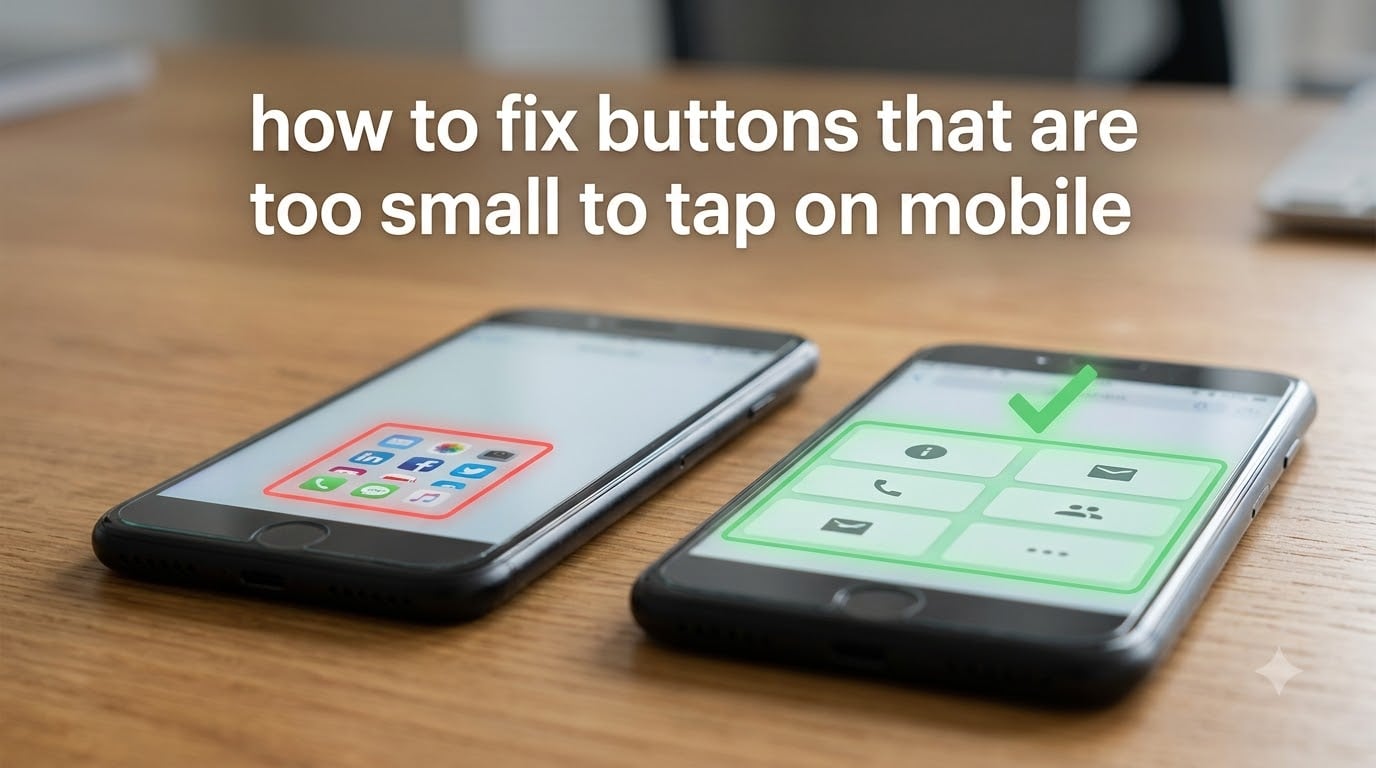
To fix buttons that are too small to tap on mobile, expand the hit area with at least 44×44 points (iOS) or 48×48 dp (Android) of touchable space, even if the visible icon stays smaller. Add transparent CSS padding around small icons, enable your phone’s built-in display-size and accessibility settings, and check spacing between adjacent buttons so fingers don’t miss-tap neighbors. I tested these fixes across iPhone, Samsung, and Pixel devices, and the combination of web, app, and OS-level changes covers nearly every “fat finger” problem.
Small buttons drive me crazy. I switched from a Samsung S10+ to a smaller iPhone and immediately started mis-tapping links on sites that looked perfectly fine on the bigger screen. That’s when I went deep into tap target guidelines, accessibility settings, and CSS hit-area hacks. This guide is everything I learned.
Table of Contents
What Makes a Button Too Small to Tap on Mobile
A button is too small to tap if its tap target falls below 44×44 points on iOS, 48×48 dp on Android, or 48×48 CSS pixels on mobile websites. Anything smaller registers as missing for most adults using one hand.
Tap target is the invisible area that actually responds to your finger, not the visible icon or label you see. A button can look 24px wide on screen but still register taps across a 48px-wide invisible area. Designers and developers call this “decoupling hit area from art.” When the two get out of sync, fingers miss.
The three measurement units matter here:
- pt (points): iOS native units, equal to 1/163 of an inch at typical viewing distance.
- dp (density-independent pixels): Android’s standard, designed to look the same size regardless of screen density.
- px (CSS pixels): Web units, scaled by the device’s pixel ratio and viewport meta tag.
Apple’s Human Interface Guidelines recommend a minimum target of 44×44 pt. Google’s Material Design spec recommends 48×48 dp. The web standard from WCAG 2.5.5 (Target Size) calls for 44×44 CSS pixels minimum, with relaxed exceptions. When I measure buttons on real sites, anything under 40px hits the “too small to tap” threshold for users with average-size fingers.
Why Small Buttons Are a Problem
Small buttons cost users time, accuracy, and confidence. Fat finger errors happen when the visible icon is smaller than the finger pad covering it, which is roughly 10-14mm wide for most adults.
Industry studies show mis-tap rates climb sharply once targets drop below 44px. Users with arthritis, motor impairments, or larger hands hit the wall much sooner. A blind user I read about on Reddit described giving up on a sleek phone because home and back buttons were too recessed to find by feel. That’s an accessibility failure, not a preference.
Small buttons also hurt conversion rates. CTAs under 44px wide generate fewer clicks than tap targets sized to platform minimums. Spacing matters just as much as size: two buttons 8px apart with 32px widths trigger mutual mis-taps. The fix is rarely “make the button bigger visually.” The fix is expanding the hit area and creating breathing room around it.
How to Fix Small Buttons on Mobile Websites (CSS Fixes)
For web developers, the fix is transparent padding around the visible button. The element stays visually small, but the touch area expands to at least 48×48 pixels. This is the single most effective CSS change for mobile usability.
Here is the core pattern I use:
Step 1: Confirm the viewport meta tag is set. Without <meta name="viewport" content="width=device-width, initial-scale=1">, mobile browsers fake a 980px-wide canvas and shrink everything, destroying tap targets.
Step 2: Add padding to the interactive element, not the wrapper. Use padding: 12px on the <a> or <button> so the clickable region grows. Visual icons can stay 24px inside, while the tap area reaches 48px.
Step 3: Use min-width and min-height, not just padding. Add min-width: 48px; min-height: 48px; as a safety net for buttons that should always be tappable.
Step 4: Increase spacing between adjacent buttons. Sitebulb and Google’s Lighthouse both flag tap targets closer than 8px apart. Add margin: 8px 0 or use flexbox gap to separate them.
Step 5: Test with Chrome DevTools. Open the device toolbar, switch to a mobile profile, and click the “Show tap targets” overlay. Any red flag means a target is below 48px or too close to neighbors.
For SVG icons inside links, the trick is wrapping the icon in a clickable container with padding. The browser registers the tap wherever the clickable area exists, regardless of whether the pixel under your finger is “fill” or “transparent.”
How to Fix Small Buttons in Mobile Apps
Native app developers fix small buttons by expanding the hit area without resizing the visible icon. Both iOS and Android give you tools to do this without breaking the design.
On iOS (UIKit/SwiftUI): Increase the button’s contentEdgeInsets or wrap the icon in a transparent UIView with a tap gesture recognizer sized to 44×44 pt. In SwiftUI, the .contentShape(Rectangle()) modifier plus .frame(width: 44, height: 44) forces the entire framed area to register taps.
On Android (XML/Compose): Add android:padding to the button or wrap the icon in an ImageView inside a clickable container with minWidth="48dp" and minHeight="48dp". In Jetpack Compose, use Modifier.minimumInteractiveComponentSize() on the composable.
For game engines (Unity): Expand the button’s RectTransform beyond the sprite’s visible bounds. Add an invisible child collider sized to the platform minimum. The image can stay small while the touch area grows.
The principle is identical everywhere: separate the visual representation from the touchable region. Players and users only feel the difference when they stop missing.
Device-Level Fixes: iPhone and Android Accessibility Settings
You don’t need to wait for developers to fix small buttons. Both iOS and Android include OS-level settings that enlarge text, buttons, and tap targets across the entire system. These are the fastest fixes for users struggling with small touch targets.
iPhone (iOS 15 and later):
- Open Settings, then Display & Text Size.
- Tap Larger Text and drag the slider to scale fonts up to 135%.
- Return to Display & Text Size and enable Bold Text for thicker, easier-to-read labels.
- For touch targets, go to Settings, Accessibility, Touch, then AssistiveTouch. Enable it and create a custom gesture menu with larger buttons.
- For help reaching items at the top of large screens, enable Back Tap (double or triple tap on the back of the phone) to summon reachability.
Android (11 and later):
- Open Settings, then Display.
- Tap Display Size and use the slider to make everything on screen larger, including touch targets.
- Go to Settings, Accessibility, then Visibility to enable Magnification. Triple-tap the screen for a zoom loupe.
- Under Accessibility, enable Select to Speak or Voice Access for hands-free button activation.
- On Samsung devices, open Settings, Accessibility, then Visibility Enhancements to enable High Contrast Fonts and Color Inversion.
For users with motor limitations, both platforms also support external switches and adaptive hardware. Bluetooth mice, trackballs, and switch interfaces plug into the Accessibility menu and let you tap buttons without finger contact at all.
Physical Button Fixes for Phone Cases and Hardware
Forum users often describe physical buttons on phone cases as too stiff, too recessed, or too small to find by feel. These are different problems than touch targets, and the fixes are mechanical rather than software.
If the button is hard to press: Remove the case and clean the button recess with compressed air. Lint and dust pack into the gap and reduce travel. If the button still sticks, the case itself may be too thick. Switch to a slim case or a model with metal button caps that extend through the cutout.
If the button is hard to find by feel: Add tactile button stickers or raised covers. Companies like Foogoo and CMF make small silicone overlays that sit on top of the case’s button area and add a raised bump. Blind users I read about in r/Blind swear by these for muscle-memory navigation.
If the button stops working after an OS update: Reboot into safe mode (Android) or reset all settings (iOS). Some updates alter haptic response curves that affect button press feedback. A fresh calibration often restores the feel.
Screen protectors can interfere too. A protector that extends over the curved edge of a Samsung or Pixel screen presses against the side button when installed. Trim the protector along the cutout, or replace it with one designed for your exact model.
Best Practices for Button Spacing and Touch Ergonomics
Two well-sized buttons placed too close together behave like one poorly-sized button. Spacing is half the fix. The minimum gap between adjacent tap targets should be 8px on mobile, with 16-24px preferred for primary actions.
Fitts’s Law, the predictive model from 1954, says the time to reach a target depends on its distance and size. Bigger targets win, but so does more breathing room. Designers who follow this law place primary CTAs at the bottom of the screen where the thumb naturally rests, using 56-64px heights and full-width spacing.
Edges of the screen are dead zones for thumbs. Place destructive or rarely-used buttons in the top corners, and reserve the bottom edge for the most common actions. Apple’s reachability and Android’s one-handed mode both push the entire UI down to the thumb’s natural arc, which is why edge buttons feel “missing” on large phones.
Test with real fingers. I keep a box of jelly fingertips printed at 12mm wide for usability tests. Anything they can’t hit reliably is too small for users with average-size hands. That single test catches more tap issues than any pixel measurement.
Frequently Asked Questions
How to make phone case buttons easier to press?
Remove the phone case and clean the button recess with compressed air to clear dust and lint. If the button still feels stiff, switch to a slim case with metal button caps that extend through the cutout. Add tactile button stickers or raised silicone overlays to make buttons easier to find by feel, especially helpful for blind and elderly users.
How do I fix the buttons on my phone?
First, restart the phone to clear any software glitches from a recent OS update. Then enable your device’s built-in accessibility settings: on iPhone, go to Settings u0026gt; Accessibility u0026gt; Touch and turn on AssistiveTouch. On Android, go to Settings u0026gt; Accessibility u0026gt; Display Size and use the slider to enlarge buttons across the system. For physical buttons, clean the case recess and replace the case if it sits too tightly over the buttons.
What size should buttons be on mobile?
On iOS, buttons should be at least 44×44 points. On Android, the minimum is 48×48 density-independent pixels. On mobile websites, the tap target should be a minimum of 48×48 CSS pixels, with at least 8px of spacing between adjacent buttons. Visual icons can stay smaller as long as the invisible touch area meets these minimums.
Can you increase the size of the buttons on an iPhone?
Yes. Open Settings, then Display u0026amp; Text Size, and tap Larger Text to scale fonts up. For larger touch targets, go to Settings, Accessibility, Touch, then AssistiveTouch to add a floating on-screen button menu. Enable Back Tap under Accessibility to use the back of the phone as a shortcut for reachability. For external control, pair a Bluetooth mouse or switch interface through Accessibility settings.
Final Thoughts on Fixing Small Mobile Buttons
Knowing how to fix buttons that are too small to tap on mobile comes down to three layers: developers expanding hit areas with transparent padding, OS-level accessibility settings scaling touch targets, and physical fixes for case buttons. If you’re a user, start with your device’s display-size and accessibility settings. If you’re a developer, audit your tap targets against the 44pt/48dp/48px minimums and add spacing between buttons. The fix is rarely a complete redesign.
Small buttons are a solvable problem at every layer. Pick the layer that applies to you, apply the changes above, and the mis-taps will stop within minutes.