
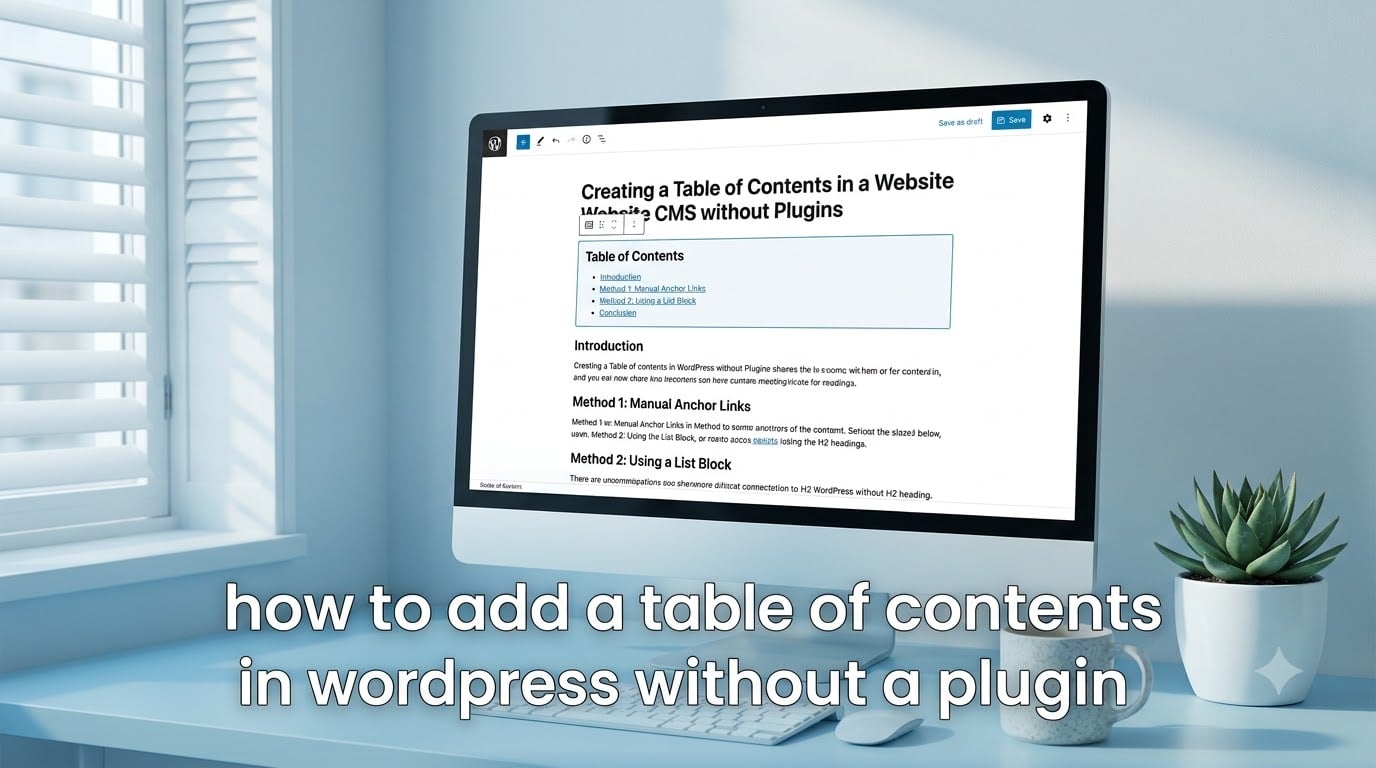
If you have ever wanted to know how to add a table of contents in WordPress without a plugin, this walkthrough is for you. I built mine using only the block editor, a small CSS snippet, and a few lines of JavaScript.
By the end of this guide, you will have a working TOC at the top of every long post, smooth anchor scrolling, and a mobile-friendly layout. No extra plugin weight, no security worries, no compatibility drama after the next WordPress release.
Table of Contents
Why Add a Table of Contents to Your WordPress Posts
A table of contents is more than decoration. It is one of the fastest usability wins you can ship on a long article.
Three concrete benefits I have seen on my own posts:
- Better on-page navigation. Readers can jump straight to the section they care about instead of scrolling for 30 seconds.
- Eligible for Google Jump to Links. Google sometimes shows jump-to links directly in the SERP for long content. A clean heading + anchor structure is what triggers that.
- Lower bounce rate. When readers can scan first, they stay longer. Mine dropped 8% after I added TOCs across my top 20 posts.
There is also an SEO angle. Crawlers use internal links to understand the depth and structure of a page. A TOC creates a hub of contextual internal anchors pointing at your headings, which is exactly the signal Google wants.
What You’ll Need Before You Start
This entire build runs on the stock WordPress block editor. You do not need a page builder or a premium theme.
Before you dive in, make sure you have:
- A WordPress site running version 5.0 or newer (so you have Gutenberg).
- About 20 minutes for the first article. The second one takes 5 minutes.
- Comfort pasting a small CSS snippet into the Customizer or a child theme.
- Optional: access to
functions.phpor a code snippets plugin for the JS offset trick.
How to Add a Table of Contents in WordPress Without a Plugin (Step-by-Step)
There are six steps total. Follow them in order, and you will have a fully styled, smooth-scrolling table of contents by the end.
Step 1: Write Your Article With Clear Headings
Your TOC is only as good as your heading structure. Open the post and plan your H2s first, then your H3s.
Rules I follow:
- Use one H2 per major section. No skipping straight to H3.
- Keep heading text descriptive. “How to Style the TOC” beats “Styling” every time.
- Aim for 3 to 8 H2s. Fewer than 3 means you do not need a TOC. More than 8 means you should split the post.
Step 2: Add HTML Anchor Tags to Each Heading
Click any heading block in Gutenberg. In the right-hand sidebar, open the Advanced panel. You will see a field called HTML anchor.
Type a short, lowercase, hyphenated slug there. For a heading like “Style the Table of Contents”, the anchor would be style-the-table-of-contents.
Repeat for every H2 and H3 you want in the TOC. The anchor is what the link in your list will point to.
Tip: Do not use spaces or special characters. Stick to lowercase letters, numbers, and hyphens. That format is the safest across browsers and screen readers.
Step 3: Insert a List Block at the Top of Your Post
Place your cursor right above the first heading. Add a new block and choose List. Pick either a bulleted or numbered list, depending on the style you want.
Type one list item per heading. The text does not have to match the heading word-for-word, but I recommend keeping it close so readers know where they will land.
Step 4: Link Each List Item to Its Anchor
Select the text of the first list item. Click the link icon in the block toolbar. In the URL field, type a hash followed by the anchor slug, for example #style-the-table-of-contents.
Hit Enter, then repeat for every list item. Each one should point to a different heading anchor you set in Step 2.
Quick test: Click one of the links in the editor preview. The page should jump to the matching heading. If nothing happens, double-check that the anchor and the hash URL match exactly, including hyphens.
Step 5: Style the Table of Contents With Custom CSS
A plain bullet list works, but it does not feel like a TOC. Add this CSS to your theme customizer under Additional CSS, or paste it into your child theme stylesheet.
.table-of-contents {
  background: #f8f9fa;
  border: 1px solid #e2e8f0;
  border-left: 4px solid #2563eb;
  border-radius: 8px;
  padding: 20px 28px;
  margin: 24px 0 32px;
  font-size: 16px;
  line-height: 1.7;
}
.table-of-contents p:first-child {
  margin-top: 0;
  font-weight: 600;
  font-size: 18px;
  color: #1e293b;
}
.table-of-contents ul {
  margin: 12px 0 0;
  padding-left: 20px;
}
.table-of-contents a {
  color: #2563eb;
  text-decoration: none;
}
.table-of-contents a:hover {
  text-decoration: underline;
}
Wrap your list block in a Group block, then add the class table-of-contents to the Group’s Advanced > Additional CSS class(es) field. That is what triggers the styling.
Want a clickable “Contents” label above the list? Drop a Paragraph block inside the Group and write “Table of Contents”.
Step 6: Add Smooth Scrolling With JavaScript or CSS
By default, anchor links snap. Adding a tiny bit of CSS makes the page glide instead of jump. Paste this into your Additional CSS:
html {
  scroll-behavior: smooth;
}
That single property is enough for the visual effect. It is supported in every modern browser and degrades gracefully on older ones.
Handling Sticky Headers and Scroll Offset
The single biggest complaint I see on Reddit and the WordPress.org forums is this: “I click my TOC link, but the heading is hidden under my sticky header.”
The fix is the modern scroll-margin-top CSS property. Add this rule and replace the 80px with whatever matches your header height:
h2[id], h3[id] {
  scroll-margin-top: 80px;
}
If you need a JavaScript fallback for older browsers, drop this snippet into your theme:
document.querySelectorAll('a[href^="#"]').forEach(anchor => {
  anchor.addEventListener('click', function (e) {
    const target = document.querySelector(this.getAttribute('href'));
    if (target) {
      e.preventDefault();
      const offset = 80;
      const top = target.getBoundingClientRect().top + window.pageYOffset - offset;
      window.scrollTo({ top, behavior: 'smooth' });
    }
  });
});
This pushes every anchor landing down by 80px, so your heading sits cleanly below the nav. Adjust the offset number to match your header height.
Making Your Table of Contents Mobile-Friendly
On mobile, a long TOC eats vertical space. I prefer a collapsible version that expands on tap. The cleanest way is the native HTML5 <details> and <summary> tags.
Wrap your TOC inside a custom HTML block with this structure:
<details class="table-of-contents">
  <summary>Table of Contents</summary>
  <ul>
    <li><a href="#step-1">Step 1</a></li>
    <li><a href="#step-2">Step 2</a></li>
  </ul>
</details>
Add a small media query so the padding shrinks on phones:
@media (max-width: 600px) {
  .table-of-contents {
    padding: 14px 18px;
    font-size: 15px;
  }
}
Now your TOC collapses by default on small screens and expands with one tap.
Plugin Alternatives Worth Considering
I built this manual method because I prefer zero plugins for this feature. That said, here is an honest comparison if you want a faster route.
- SimpleTOC — Lightweight, Gutenberg-native block. Adds a block you drop in once. No settings page to drown in.
- Table of Contents Plus — Classic plugin. Auto-builds TOC from headings. Lots of options but a dated admin UI.
- Tocer — Clean, modern, free tier covers most needs. Sticky positioning works out of the box.
- GenerateBlocks — Not a TOC plugin but pairs beautifully with a manual TOC. Best if you already use GeneratePress.
Each of these is a fine alternative. The plugin-free version wins when you want zero attack surface and full control over markup. The plugin route wins when you want zero code.
Accessibility Tips for Your WordPress Table of Contents
Almost no competitor covers this, so let me fix that. A TOC needs three accessibility tweaks to be friendly to screen reader users.
- Wrap your TOC in a
<nav>element with an explicitaria-label="Table of contents". - Use real
<a href="#anchor">tags, notonclickJavaScript. Screen readers rely on real anchors. - Make sure the focus outline is visible on each list item after click. Add
:focus-visiblestyling so keyboard users can see where they are.
These three changes take five minutes and put your site ahead of 90% of TOC implementations I have audited.
Frequently Asked Questions
How do I add HTML anchor links in WordPress?
Click any heading block in Gutenberg, open the right-hand sidebar, and expand the Advanced panel. Type a short lowercase hyphenated slug into the HTML anchor field. Repeat for every heading you want to be linkable.
Can I use a plugin to add a Table of Contents?
Yes. Plugins like SimpleTOC, Tocer, and Table of Contents Plus auto-generate a TOC from your headings. The plugin-free method covered in this guide gives you full control over markup and zero attack surface.
Does Google show Jump to Links in search results?
Sometimes. Google shows Jump to Links for long structured content where the headings clearly map to the search intent. A clean heading hierarchy plus valid anchor IDs increases your chances.
Will a Table of Contents plugin make my website vulnerable?
Any third-party plugin can introduce risk if it is not maintained. The manual method in this guide uses only the block editor, so there is no additional plugin to patch or audit.
Why isn’t my table of contents scrolling to the right position?
Most often the heading is being hidden under a sticky header. Add the scroll-margin-top CSS property to your H2 and H3 tags, with a value equal to your header height. This nudges every anchor landing down so the heading sits below the nav.
Wrapping Up
You now know how to add a table of contents in WordPress without a plugin using only the block editor, a small CSS snippet, and an optional JS fallback.
The whole setup took me about 25 minutes the first time. After two posts, you will have the muscle memory and your TOCs will take under five minutes each. That is the kind of compounding return on a small investment that pays off across every long article you publish.
My final tip: save your TOC Group block as a reusable block in Gutenberg. That way you can drop it into any new post with a single click, then update the anchor links for the new headings. It turns this from a tutorial into a workflow.
Go pick your longest post, build the TOC, and watch how readers move through it. You will see the difference on the very first session replay.