
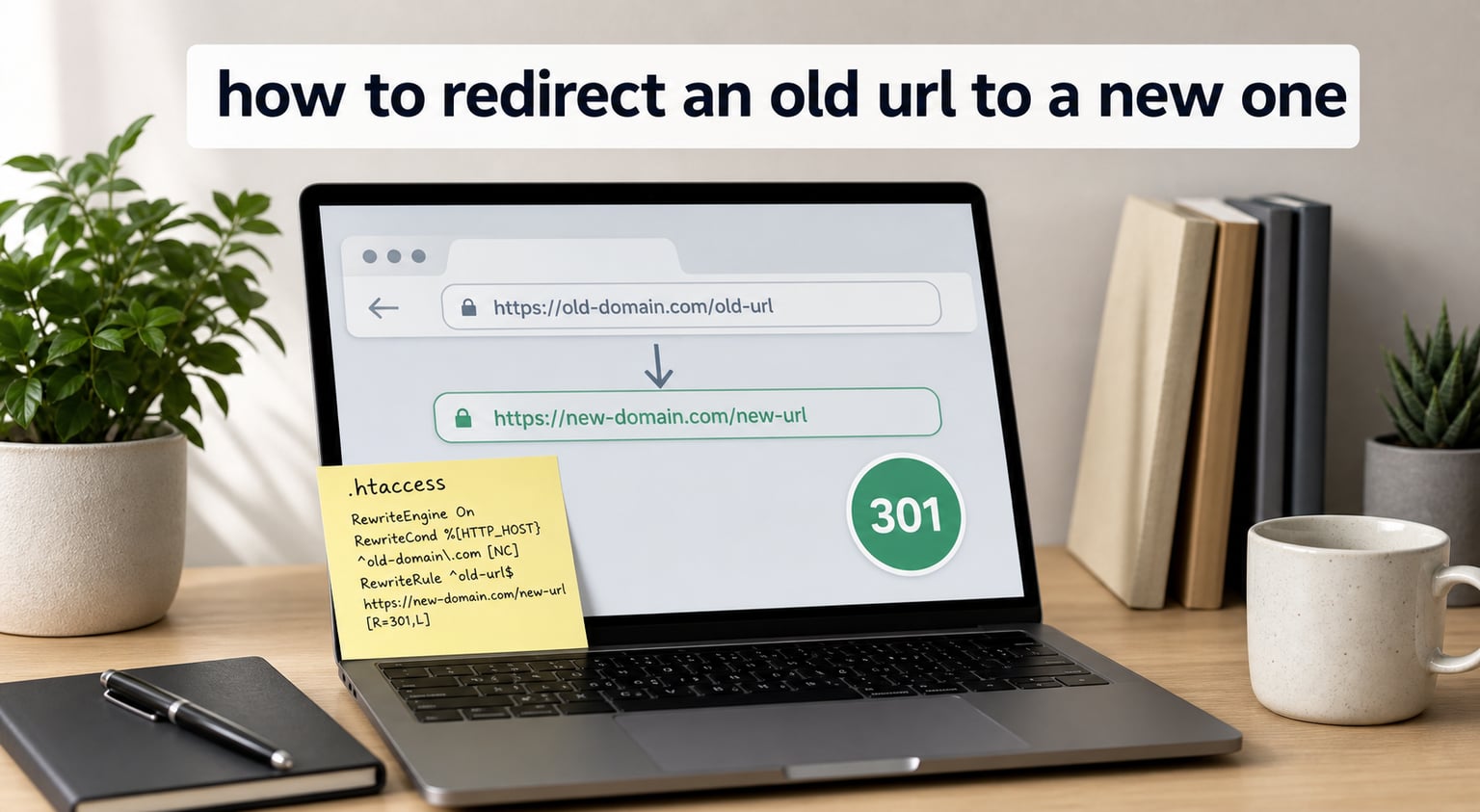
Redirecting an old URL to a new one is one of those tasks every website owner eventually faces. Whether you are moving to a new domain, restructuring pages, or fixing a broken link, the goal is the same: send visitors and search engines from the old address to the new one without losing SEO value.
Over the past several years, our team has helped migrate dozens of sites, and the redirect mistakes we have seen are surprisingly consistent. Most people reach for the wrong tool, pick the wrong redirect type, or skip testing entirely. This guide walks through every reliable method we use today to redirect an old URL to a new one, with code snippets you can copy and verify.
By the end, you will know which redirect method fits your setup, how to test it correctly, and how to keep your search rankings intact during the move.
Table of Contents
What Is a URL Redirect and Why It Matters
A URL redirect is a server instruction that automatically sends visitors from one web address to a different one. When someone types or clicks the old link, the browser receives an HTTP status code that points them to the new page within a fraction of a second.
Redirects matter because they preserve the SEO authority that an old URL has built up over time. Search engines treat every backlink as a vote of confidence. When a page moves without a redirect, those votes become 404 errors and the ranking power disappears. According to Google’s official documentation on redirects, the correct redirect type also helps Google transfer the old page’s signals to the new destination.
You will also want a redirect any time you change domain names, rename a page slug, switch from HTTP to HTTPS, merge two websites, or move from a subdomain to a subdirectory. We have seen forum users lose years of organic traffic simply because they skipped this step during a brand rename.
301 vs 302 vs Meta Refresh: Choosing the Right Redirect Type
Choosing the right redirect type is the first decision you need to make. Each one sends a different signal to browsers and search engines, and picking the wrong one can quietly hurt your rankings.
301 Redirect (Permanent)
A 301 redirect tells search engines that the old URL has moved permanently and all of its SEO value should transfer to the new URL. This is what you want in roughly 95% of cases, including site migrations, page renames, and domain changes. Our team uses 301s by default and only switches when there is a clear reason not to.
302 Redirect (Temporary)
A 302 redirect signals that the move is temporary and the old URL will return. Search engines keep the original URL indexed and may not pass full link equity. Use a 302 when you are A/B testing a landing page, sending users to a maintenance page briefly, or running a short-term campaign.
Meta Refresh
A meta refresh is a client-side redirect that lives inside the HTML head tag of the old page instead of on the server. It is slow, can hurt user experience, and passes little to no SEO value. Avoid meta refreshes for SEO purposes, and reserve them only for emergency situations where you have no server access.
| Redirect Type | Status Code | SEO Impact | Best Use Case |
|---|---|---|---|
| 301 Permanent | 301 | Full link equity transfer | Domain moves, URL changes, HTTPS migration |
| 302 Temporary | 302 | Limited equity transfer | A/B tests, maintenance, short campaigns |
| Meta Refresh | 200 (HTML) | Poor or none | Last-resort fallback only |
How to Redirect an Old URL to a New One: Step-by-Step Methods
There are four reliable ways to redirect an old URL to a new one. Pick the method that matches where your site lives and how comfortable you are with code.
Method 1: Set Up a Redirect Through cPanel
cPanel is the control panel used by most shared hosting providers, and it has a built-in redirect tool that does not require code. Here is the exact process we use when working on a hosting account like HostGator or Bluehost.
- Log in to your hosting account and open cPanel.
- Scroll down to the Domains section and click the Redirects icon.
- Choose the redirect type from the drop-down. For SEO purposes, pick Permanent (301).
- In the first field, enter the path you want to redirect. Leave it blank for the whole domain, or type a path like /old-page.
- In the redirects to field, enter the full destination URL, for example https://example.com/new-page.
- Choose whether to redirect with or without www, and whether the redirect should match query strings.
- Click Add and cPanel writes the redirect to your .htaccess file automatically.
We have walked beginners through this exact flow in under three minutes, and it works on nearly every mainstream shared host.
Method 2: Add a Redirect in .htaccess
The .htaccess file is a hidden configuration file that Apache-based servers read on every request. Editing it gives you more control than cPanel and is the preferred method for developers. Before you edit, always back up the file so you can restore it if anything breaks.
To redirect a single old page to a new one, add this to your .htaccess file inside the document root:
Redirect 301 /old-page https://example.com/new-page
To redirect an entire old domain to a new one while preserving page paths, use this block:
RewriteEngine On
RewriteCond %{HTTP_HOST} ^olddomain.com$ [OR]
RewriteCond %{HTTP_HOST} ^www.olddomain.com$
RewriteRule ^(.*)$ https://newdomain.com/$1 [R=301,L]
The R=301 flag is what makes it a permanent redirect. The L flag tells Apache this is the last rule to apply. Without the L, you can accidentally create redirect loops.
Method 3: Use a WordPress Plugin
If your site runs on WordPress and you are not comfortable editing server files, a redirect plugin is the fastest path. Two plugins we have used across many client sites are Redirection and Rank Math SEO. Both let you manage redirects from the dashboard and automatically log 404 errors.
- Install and activate the Redirection plugin from Plugins › Add New.
- Go to Tools › Redirection and click Add New.
- Enter the source URL (your old path) and the target URL (the new path).
- Set the type to 301 Redirect.
- Click Add Redirect and the plugin handles the rest.
The plugin writes the redirects to your .htaccess file under the hood, so they perform just as well as manual ones. The main advantage is the interface and the 404 log, which makes catching stray redirects much easier.
Method 4: Forward the Domain at Your Registrar
Domain registrar forwarding is the simplest method, but it is also the weakest for SEO. Most registrars like GoDaddy, Namecheap, and Cloudflare offer a URL forwarding option that redirects the whole domain to another address.
To set it up, log in to your registrar, open the DNS or domain management page, and turn on URL forwarding. Enter the destination URL and confirm. The change usually takes effect within an hour.
The big limitation is that registrar forwarding typically only redirects the bare domain. Subpages often collapse to the new homepage rather than the matching new page. Our team treats registrar redirects as a last resort because they rarely preserve the per-page link equity that makes a migration worthwhile.
How to Redirect an Old Domain to a New Domain Without Losing SEO
Full domain migrations are where redirects pay for themselves. We have seen clients retain 90 to 100% of their organic traffic after a domain move, and we have seen others lose half of it. The difference almost always comes down to whether individual 301 redirects were set up for every important page.
The recommended approach is to map every old URL to its closest new URL before flipping the DNS. For a 50-page site, this is a manageable spreadsheet. For a 5,000-page e-commerce site, you will likely want to use an export from your CMS or a tool like Screaming Frog to crawl and match URLs in bulk.
Once the mapping is in place, deploy the wildcard redirect in .htaccess as shown in Method 2 above so any unmapped URLs still land somewhere sensible on the new domain. Then submit your sitemap for the new domain in Google Search Console and use the Change of Address tool, which we cover next.
Forum users regularly confirm this approach. As one r/webdev thread put it, setting up an individual 301 redirect for each page is the gold standard, and wildcard redirects are second best. Registrar redirects alone are usually a last resort.
How to Test Your Redirects After Setup
Testing is the step most guides skip, and it is also where most failures show up. We always test redirects before considering a migration done. There are three quick ways to verify.
- Browser test: visit the old URL in an incognito window and confirm you land on the right new page.
- Header check: open a terminal and run curl -I https://example.com/old-page. Look for an HTTP/1.1 301 Moved Permanently response and a Location header that points to your new URL.
- Online header checker: paste the old URL into a free tool like httpstatus.io or Redirect Checker. These tools show the full redirect chain, including any unwanted intermediate hops.
If your redirect shows up as a 302 when you intended a 301, fix it on the server. If you see multiple hops in the chain, simplify them so the visitor goes directly from A to C rather than A to B to C. Long chains slow pages down and dilute SEO signals.
Using Google Search Console Change of Address Tool
The Google Search Console Change of Address tool is the official way to tell Google that your site has moved to a new domain. Once 301 redirects are in place, this step makes the migration official in Google’s index.
- Verify the new domain in Google Search Console if you have not already.
- In the old property, open Settings and click Change of Address.
- Select the new verified property from the drop-down.
- Follow the checklist. Make sure 301 redirects are confirmed before submitting.
- Re-submit your new sitemap on the new property.
This step does not replace 301 redirects, it complements them. The redirects handle visitors and search engine crawlers, while the Change of Address tool updates Google’s records and helps the new domain rank faster.
Common Redirect Mistakes to Avoid
Most redirect problems fall into a handful of patterns. We have fixed all of these on real client sites.
Redirect Chains and Loops
A redirect chain happens when page A redirects to page B, which then redirects to page C. Each hop adds latency and weakens SEO signals. A redirect loop is when A redirects to B and B redirects back to A, which breaks the page entirely. Always test the full chain and collapse it to a single direct redirect when possible.
Using 302 When You Mean 301
A 302 used by mistake keeps the old URL in the index instead of the new one. We have seen marketing teams lose months of rankings because someone picked 302 in cPanel without thinking. If the move is permanent, the redirect should be 301.
Redirecting Only the Homepage
Setting up only the homepage redirect is a very common forum complaint. Visitors and search engines will still hit 404 errors on every other page. Use a wildcard rewrite or set up bulk redirects to cover the entire site.
Frequently Asked Questions
Is there a way to redirect a URL to another URL?
Yes. You can redirect a URL to another URL using a 301 (permanent) or 302 (temporary) redirect. The most common methods are editing your .htaccess file, using the redirect tool in cPanel, or installing a plugin like Redirection on WordPress. Each method instructs the browser to load the new URL automatically when someone visits the old one.
How can I redirect a URL but keep the original URL?
Technically, you cannot redirect a URL to a new one while keeping visitors on the original. The whole point of a redirect is to send users elsewhere. If you want the new content to load under the old URL, you would instead rewrite the URL in your server config rather than redirect it. Rewrites keep the address bar pointing at the original URL while serving the new page.
How do I redirect my URL?
The fastest way to redirect a single URL is to add a line to your .htaccess file: Redirect 301 /old-page https://example.com/new-page. If you use cPanel, open the Redirects tool, choose Permanent (301), enter the old path and the new destination, then save. For WordPress sites, install the Redirection plugin and set up the rule through its dashboard.
How do I redirect an old domain to a new one?
To redirect an old domain to a new one while preserving SEO, set up individual 301 redirects from each old page to its corresponding new page, add a wildcard 301 in .htaccess for any unmatched URLs, then use the Google Search Console Change of Address tool on the old property to tell Google the site has moved. Plan the URL mapping first, deploy the redirects, then verify with curl or a header checker before flipping DNS.
Conclusion
Knowing how to redirect an old URL to a new one is a core skill for anyone managing a website. Pick a 301 redirect for permanent moves, choose the method that matches your stack (cPanel, .htaccess, WordPress plugin, or registrar), and always test the result before declaring the job done. Pair your redirects with the Google Search Console Change of Address tool, and you can migrate domains while keeping most of your SEO value intact.
For your next step, map out every old URL that needs to move, deploy the redirects using one of the methods above, then verify the headers with a quick curl check. The full process usually takes less than an hour, and it pays off the first time someone clicks an old backlink and lands exactly where you want them to.