
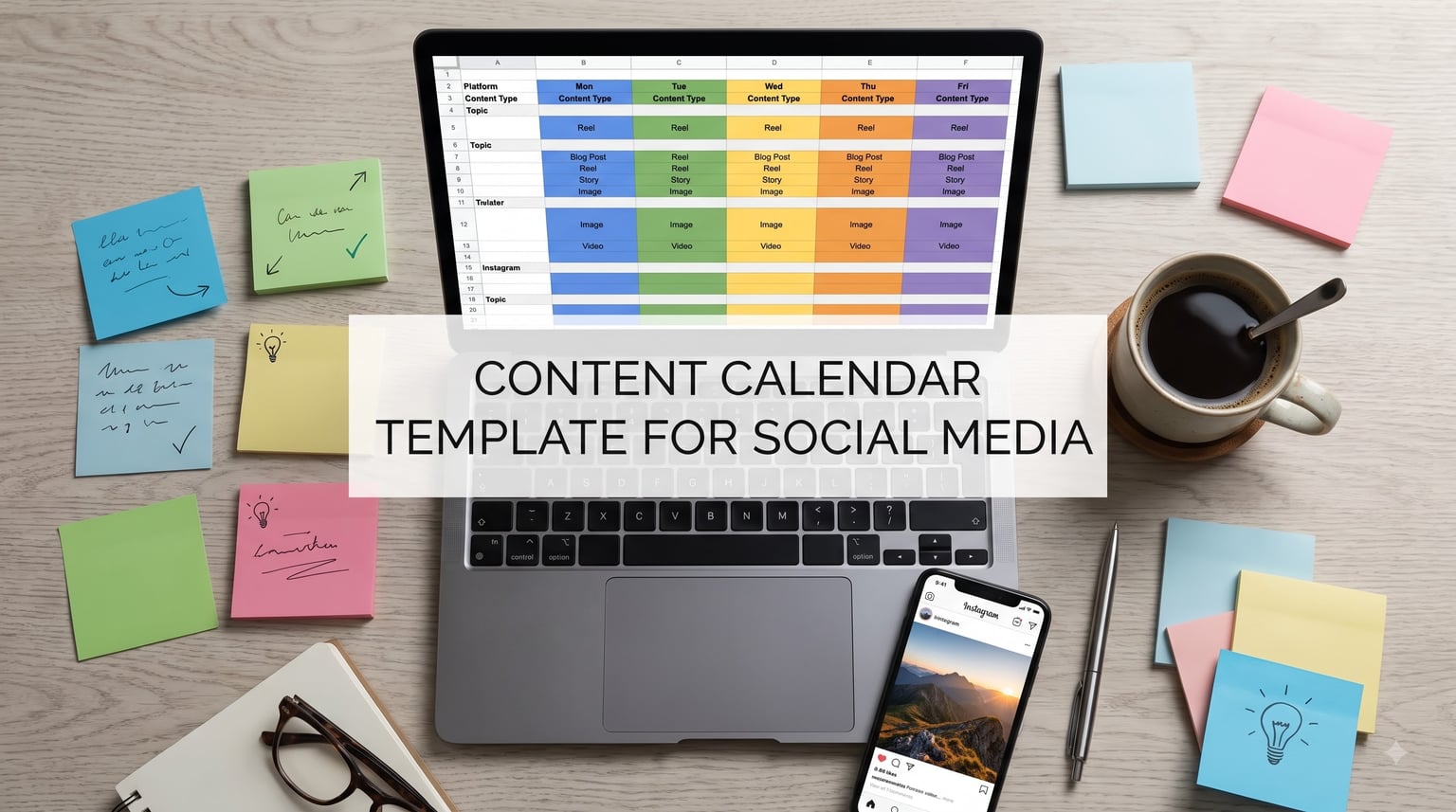
A content calendar template for social media is the single tool that separates chaotic posting from a real publishing workflow. I built my first one in a Google Sheet with five columns and a yellow highlighter, and within three months my team had tripled output without adding hours. This guide walks you through the exact framework we use, plus the free templates, posting frequencies, and planning horizon that work for small teams and one-person shops in 2026.
You will leave with a working template, a 6 to 8 week planning horizon, and a clear sense of which format fits your team. Whether you manage Instagram, LinkedIn, TikTok, or all of the above, the structure below scales with you.
Table of Contents
What Is a Content Calendar Template for Social Media?
A content calendar template for social media is a reusable document that maps every planned post to a date, platform, caption, visual, and owner. It turns scattered ideas into a single source of truth your team can review, edit, and approve before anything goes live.
Most calendars track the same core fields. The Sprout Social featured snippet on this topic lists five: Date and Time, Platform, Copy, Visuals, and Status. I would add three more fields that saved my team hours each week: Owner, Campaign, and Link/UTM.
You can run a content calendar in a spreadsheet, a Kanban board, a Gantt chart, or a dedicated planner like Notion or Airtable. The format matters less than the habit of writing posts down before you create them. Once every post has a row, your content planning shifts from reactive to proactive.
Why Use a Social Media Content Calendar?
Posting consistently is the number one challenge for small business social media managers. Reddit’s r/SocialMediaManagers community runs threads every month from people who can keep up for two weeks and then fall off. The pattern I see again and again: no written plan means no accountability.
A calendar saves time. When I batch-write captions on Monday and visuals on Tuesday, my effective output per hour roughly doubles. You stop asking “what should I post today?” and start asking “is this ready?” That is the difference between content marketing and content scrambling.
A calendar improves quality. Posts go through review cycles before they ship. Capture typos, off-brand claims, broken links, and wrong dates before they reach a customer. One pre-publish check catches 90% of the issues that would otherwise become apologies.
A calendar helps prove ROI. Tag every post with a campaign name and UTM parameters. Three months in, you can show the owner exactly which posts drove traffic, signups, or sales. Without UTM tracking, every post is a guess.
A calendar aligns teams. Stakeholders see what is shipping, designers know what is coming, and writers know the deadline. The peace of mind from a shared content strategy is hard to put on a slide but you feel it every week.
Key Elements to Include in Your Content Calendar Template
Here are the eight columns I include on every calendar I build. Copy this structure into your Google Sheet or Notion database and you are ready to publish.
- Date and Time: When the post goes live, with timezone. Include both publish date and optimal send time.
- Platform: Instagram, LinkedIn, TikTok, Facebook, X, Pinterest, YouTube Shorts, or Threads. One row per platform per post.
- Post Copy / Caption: The full caption text or a short hook plus a link to the long-form draft.
- Visual: Thumbnail, link to the design file, or a short description of the photo or video needed.
- Status: Idea, Draft, In Review, Approved, Scheduled, Published. Use a drop-down menu so filtering is one click.
- Owner: The person responsible for the post. For team workflows, also include Reviewer.
- Campaign: A tag for the broader initiative (Q4 Launch, Black Friday, Newsletter Promo). Single source for campaign tracking.
- Link and UTM: The destination URL with UTM parameters so analytics can attribute clicks to this specific post.
Optional columns that help larger teams: content pillar, target audience persona, hashtags, alt text, and notes. Keep the core eight and add the rest only when you feel the friction.
Content Calendar vs Editorial Calendar: What’s the Difference?
People mix these two terms up constantly, and the two top-ranking competitors use them interchangeably. They are not the same thing, and the distinction matters when you scale past one person.
A content calendar focuses on execution. It tracks the specific posts going live this week and next week: the captions, visuals, links, and approvals. It is the tactical layer of your content strategy.
An editorial calendar focuses on themes. It maps out the topics, storylines, campaigns, and content pillars for the quarter or year. It answers “what are we going to talk about, and when?” without specifying the exact post.
Most teams use both. The editorial calendar sets the strategy, and the content calendar breaks that strategy into shippable posts. If you manage a blog, podcast, and social under one brand, the editorial calendar holds everything together and the social content calendar is a slice of it.
For a one-person team in 2026, start with a single calendar that mixes both functions. Add a “Pillar” column and a “Campaign” column and you effectively have an editorial calendar embedded in your content calendar. Split them into two documents only when collaboration requires it.
How to Create a Content Calendar for Social Media (Step-by-Step)
Below is the seven-step process I walk every new social media manager through. It takes about two hours the first time and 30 minutes per week after that.
Step 1: Define Your Goals and Content Pillars
Pick three to five content pillars. A pillar is a recurring theme your audience expects. For a SaaS brand they might be product tips, customer stories, industry news, behind-the-scenes, and memes. Each post should map to one pillar so your feed feels intentional.
Step 2: Pick Your Calendar Format
Choose between spreadsheet, Kanban board, or Gantt chart. Spreadsheets work for most small teams. Kanban boards shine when posts move through many approval stages. Gantt charts help when campaigns span weeks and overlap.
Step 3: Set Up the Columns
Add the eight core columns listed above. Use drop-down menus for Status, Platform, and Owner so you can filter later. Add a Notes column for last-minute context.
Step 4: Block Out the Next 6 to 8 Weeks
Plan 6 to 8 weeks ahead. This window is long enough to see campaign momentum and short enough to stay accurate. Most teams that plan beyond 8 weeks waste effort rewriting.
Step 5: Batch Create Content
Write captions in one sitting, design visuals in another, and shoot video in a third. Batching content reduces context switching and roughly doubles your output per hour.
Step 6: Build a Review Cycle
Add an approval stage before publishing. One reviewer for small teams, two for agencies. Mark the calendar row “Approved” only after a human signs off.
Step 7: Schedule, Publish, and Track
Use a scheduler like Buffer, Hootsuite, or the native platform tool. Move posts from Approved to Scheduled to Published. At the end of each week, review what shipped and update next week’s plan.
Choosing the Right Calendar Format: Spreadsheet, Kanban, or Gantt
Each format fits a different team. Here is how they compare.
Spreadsheet (Google Sheets or Excel)
Best for solo creators and small teams. Free, easy to learn, and shareable. Filter by platform, owner, or status in two clicks. Most free content calendar templates start here. Limit: it does not visualize workflow stages as clearly as a Kanban board.
Kanban Board (Trello, Notion, ClickUp)
Best for teams with multiple approval stages. Columns like Draft, In Review, Approved, Scheduled, Published make workflow visible. Drag and drop is friendly for non-technical collaborators. Limit: reporting and analytics take more setup.
Gantt Chart (Monday.com, ClickUp, Asana)
Best for campaigns that span weeks and require multiple contributors. See campaign overlap at a glance. Limit: overkill for one-person teams and harder to learn than a spreadsheet.
My default recommendation for a brand new social media manager: start with a Google Sheet. Move to a Kanban board when you add a second person. Move to a Gantt chart when you run a campaign with more than five contributors.
Best Free Tools to Build Your Content Calendar Template
You do not need to pay for planning software to start. These are the free tools I have used personally and recommend to clients.
Google Sheets
The most popular free content calendar tool on the market. Canva, HubSpot, and dozens of independent creators publish free Google Sheets templates you can copy and customize. Add conditional formatting to color-code Status and you can scan the week in 10 seconds.
Notion
Notion is gaining popularity fast for content planning. The database view gives you the spreadsheet feel, the Kanban view gives you workflow stages, and the calendar view gives you the actual calendar. The Notion template gallery has hundreds of free content calendar templates for social media.
Airtable
Airtable is what you graduate to when Google Sheets feels limiting. It supports linked records, multiple views, and automations. The free tier covers most small teams. If you need to connect your calendar to a CRM or analytics tool, Airtable is the easiest path.
Canva Content Calendar
Canva’s built-in content calendar is a relatively new free option. It handles the visual side of your planning and lets you schedule posts directly. Best if your team already designs in Canva.
Trello
Trello is the simplest Kanban board. The free tier handles most small teams. Use a Power-Up like Calendar to visualize posts by date. Trello shines when your approval workflow has three or more stages.
How Often to Post on Each Platform
Posting frequency is the most common PAA question tied to this topic. Here are the recommendations I share with clients, drawn from the latest platform guidance and our own account tests.
- Instagram (Feed + Reels): 4 to 7 posts per week, plus 2 to 3 Stories per day.
- TikTok: 3 to 5 videos per week. Consistency beats volume on TikTok.
- LinkedIn: 3 to 5 posts per week for personal brands, 1 to 2 per week for company pages.
- Facebook: 3 to 5 posts per week. Engagement is dropping on Facebook in 2026, so prioritize quality over quantity.
- X (Twitter): 3 to 5 posts per day if you can sustain it, otherwise 1 to 3 per day.
- Pinterest: 5 to 15 pins per week. Pinterest rewards volume because pins live for months.
- YouTube Shorts: 3 to 7 shorts per week. Pair with at least one long-form video per month.
- Threads: 3 to 7 posts per week as the platform matures.
These are targets, not minimums. A smaller team posting 3 high-quality LinkedIn posts a week will outperform a team burning out on 10 low-quality ones. Use the calendar template to set realistic commitments.
How Far in Advance Should You Plan Social Media Content?
Plan 6 to 8 weeks ahead. This is the planning horizon most teams land on after testing longer and shorter windows. Three weeks is too short to see campaign momentum. Twelve weeks is too long to stay accurate in a fast-moving market.
Break the window into three layers. The current week is locked and ready to publish. The next two weeks are drafted and in review. The further 4 to 6 weeks are roughed in with themes and pillar posts. This gives you flexibility without chaos.
Re-plan monthly. Block one hour at the start of each month to refresh the 6 to 8 week view. Add any campaign launches, promotions, or product updates. Archive anything that no longer fits. This single habit keeps the calendar trustworthy.
Content Calendar Best Practices and Pro Tips
These are the habits that separate good calendars from great ones.
Color-Code Your Status
Use conditional formatting in Google Sheets to color rows by status. Yellow for Draft, Orange for In Review, Green for Approved, Blue for Scheduled, Grey for Published. You can scan 50 rows in seconds.
Tag Every Post With a Campaign
Without a Campaign column, you cannot answer the question “did our Black Friday push work?” Add a Campaign tag to every post from day one. Your future self will thank you during quarterly reviews.
Build a Swipe File for Reusable Hooks
Keep a separate tab called “Hooks” with the opening lines that worked best. When you sit down to write captions, you start with proven starters. This single practice lifts average engagement within a quarter.
Schedule Evergreen Content
Evergreen content is timeless: best practices, definitions, tips, and how-tos. Build a separate “Evergreen” tab and rotate those posts every quarter. You get a steady baseline of reach even when fresh ideas stall.
Leave Room for Reactive Posts
Block 20% of your weekly slots for reactive content: trending topics, breaking news, customer shoutouts. Planning 100% of your calendar kills the spontaneity that makes social media work. Reserve space and trust yourself to use it well.
Common Mistakes to Avoid
Do not skip the UTM column. UTM parameters are the only way to tie a post to a specific campaign in Google Analytics. Do not maintain the calendar in three places. Pick one tool and stick with it. Do not assign posts without an owner. An ownerless row is a row that never ships.
Frequently Asked Questions
How do I create a content calendar for social media?
Start by defining three to five content pillars and choosing a format (Google Sheets is the easiest free option). Then add eight core columns: Date and Time, Platform, Copy, Visual, Status, Owner, Campaign, and Link/UTM. Block out the next 6 to 8 weeks, batch create your content, build a review cycle, and schedule one week at a time. Re-plan monthly and adjust as campaigns evolve.
What is the best free content calendar for social media?
Google Sheets is the most popular free content calendar because it is easy to share, supports conditional formatting, and has hundreds of free templates. Notion is the best free option if you want database, Kanban, and calendar views in one place. Airtable is the best free option if you need linked records, automations, or multiple views for a small team.
What is the best content planner for social media?
The best content planner depends on your team size. Solo creators do well with Google Sheets or Notion. Small teams benefit from Notion, Airtable, or Trello. Larger teams and agencies often choose Monday.com, ClickUp, or Asana for Gantt-style campaign planning. The best planner is the one your team will actually use every week, so start simple and upgrade as your workflow matures.
What is the difference between a social media calendar and a content calendar?
A social media calendar is a subset of a content calendar. The social media calendar tracks specific posts going live on social platforms, with dates, captions, and visuals. The content calendar covers every channel (social, blog, email, podcast, video) and includes the editorial themes, campaigns, and content pillars behind those posts. Most teams start with a social media calendar and add editorial planning as they scale.
Final Thoughts: Get Started With Your Content Calendar Today
A content calendar template for social media is the cheapest growth tool you will ever adopt. It costs nothing, takes two hours to set up, and pays you back every week through saved time, higher quality, and clearer ROI. Start with a Google Sheet, eight columns, and a 6 to 8 week planning horizon. Add UTM tracking, a review cycle, and color-coded status from the beginning. Re-plan monthly and adjust as your content strategy matures. Your 2026 social media calendar is the foundation every other content investment builds on.